
Send your message
You need an editable Kit and a webhook URL. Use a test channel for your first send.
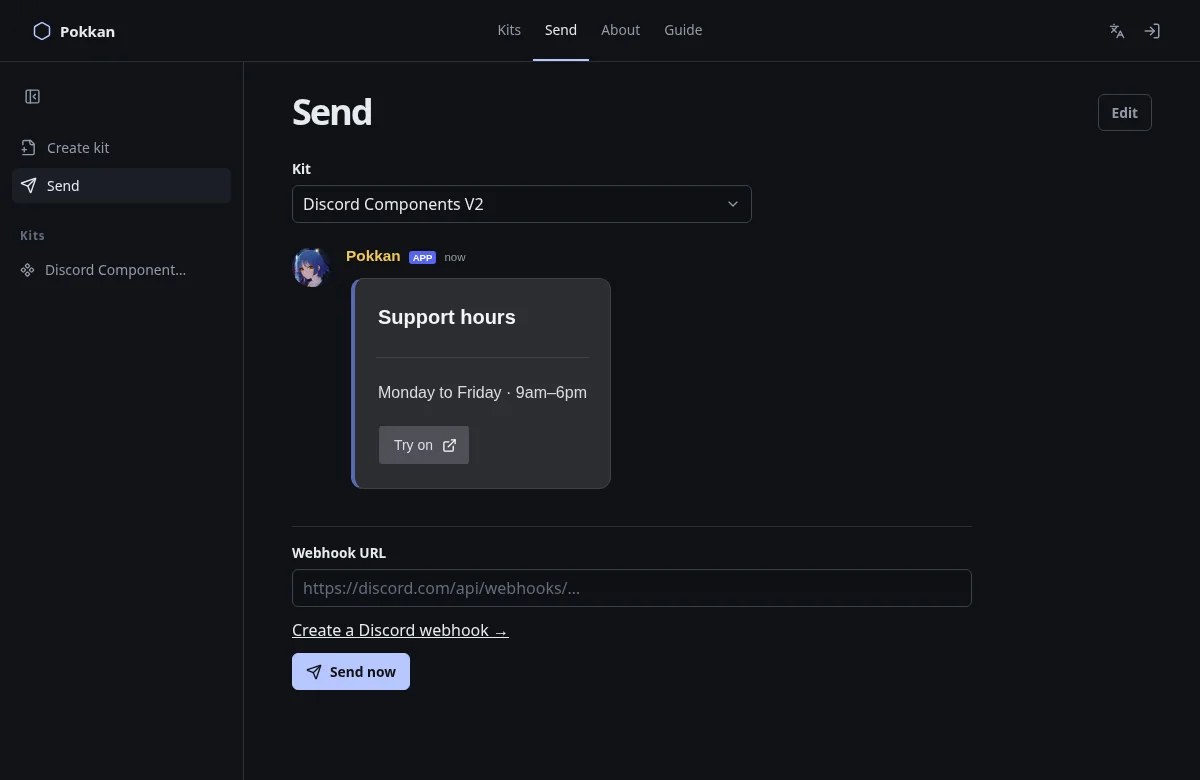
- In the editor, choose the Send icon. Alternatively, open Send from navigation and choose your Kit.
- Review the message preview. Check text, links, images and mentions.
- Paste the webhook URL. If Pokkan reports an error, fix it before continuing.
- Choose Send now once.
- Open the webhook’s channel in Discord and confirm the message arrived.
Each successful send creates a new Discord message. Changing or deleting your Kit does not update or remove messages already sent. Pokkan does not yet provide a sent-message management screen.
Pokkan remembers a successfully used webhook in this browser for the current language’s Send page. Clear the field to remove the remembered URL. Do not use this convenience on a shared device.
Link Buttons open websites. Ordinary interactive buttons and selects need an application to respond; Pokkan’s current webhook flow does not provide that runtime. File uploads also are not available. A saved Placeholder is not automatically filled from your Discord server: replace unresolved tokens before sending.
If delivery fails, check the sending checklist. Avoid repeatedly clicking Send while a request is still pending.
Next: Save and reopen →